Sample SOP
This is what you get back. It was produced from a 2 min 39 s public tutorial recording with the same process we use for client work.
SOP: Import a comma-separated file into LibreOffice Calc
| Purpose | Load a comma-delimited export into a spreadsheet as clean columns |
|---|---|
| Who | Anyone who receives .txt/.csv data exports |
| Tools | LibreOffice Calc (same flow in Excel) |
| Time | About 2 minutes |
Before you start
- The data file is saved locally
- Fields are separated by one delimiter (comma, tab, or semicolon)
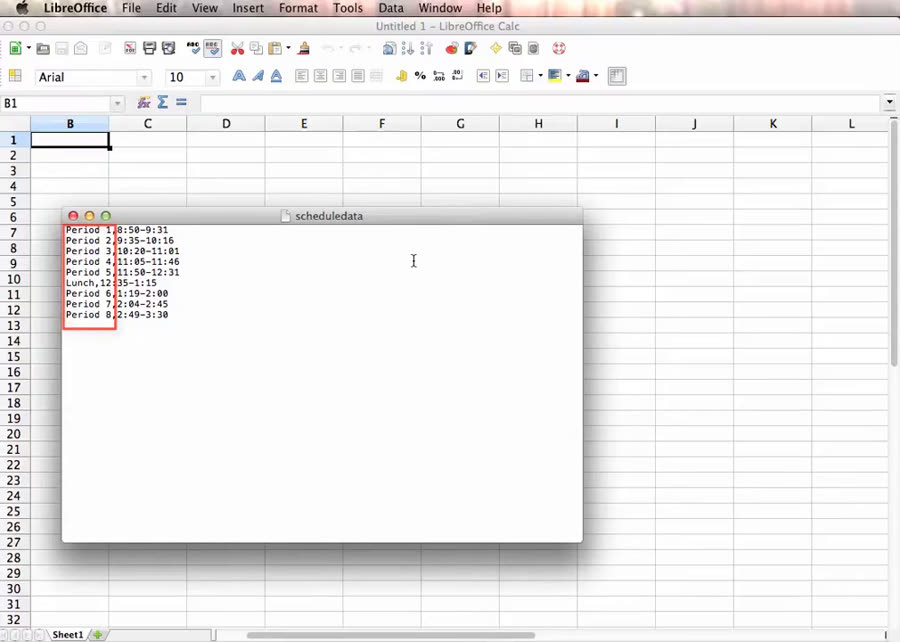
Step 1. Check the source file's structure
Open the file in a text editor and confirm how fields are separated. Each line holds a period and a time, separated by a comma.
Step 2. Open the file from Calc
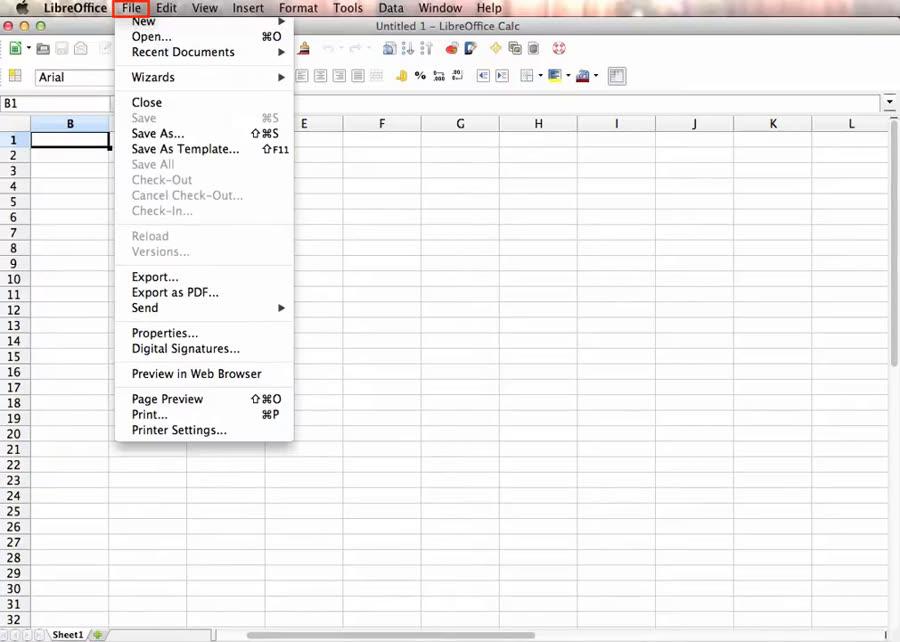
In Calc, click File → Open…
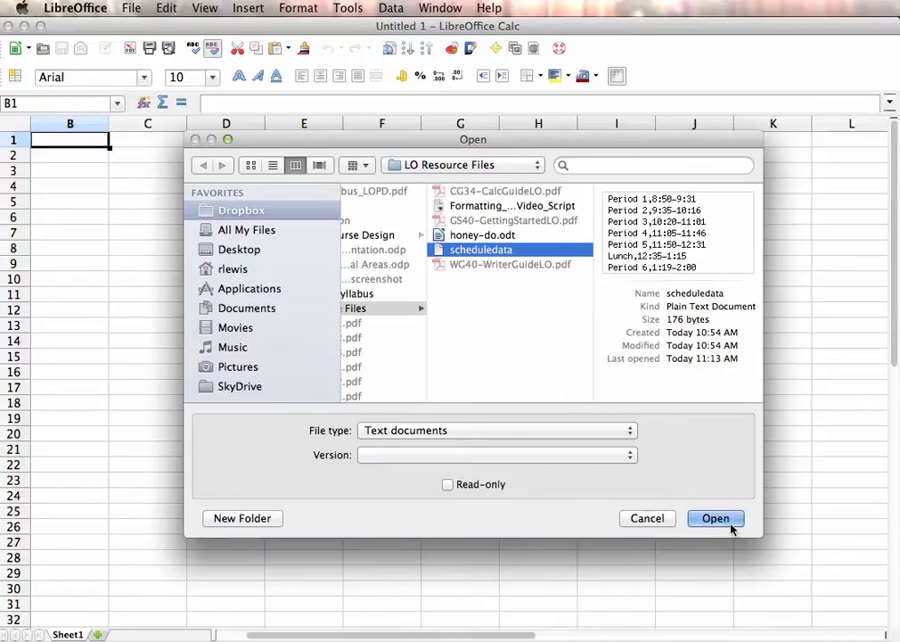
Step 3. Filter to text documents and select the file
Set File type to Text documents, select the data file, click Open. The Text Import wizard opens.
Step 4. Leave the Import settings at their defaults
Character set and Language can stay as they are for a standard file.
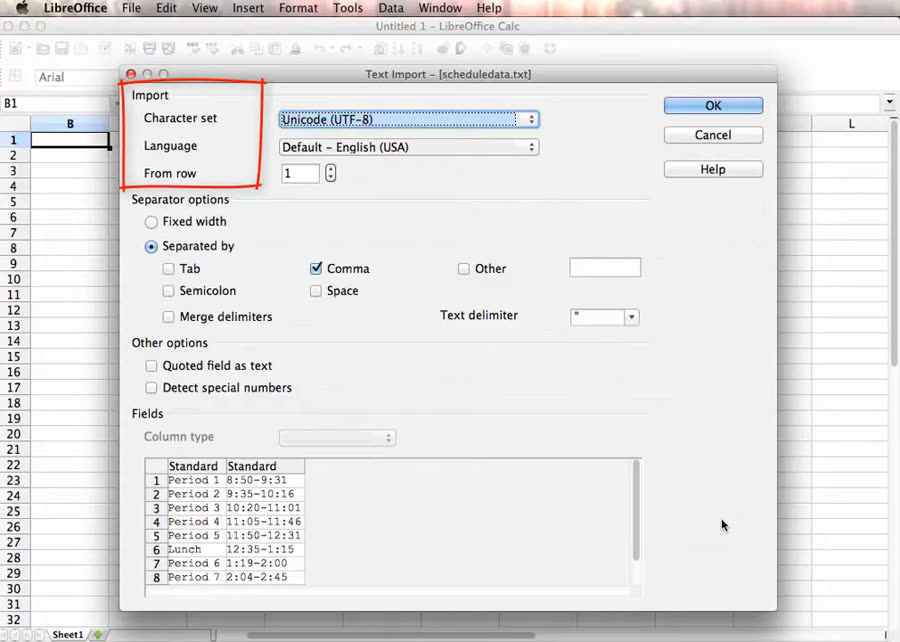
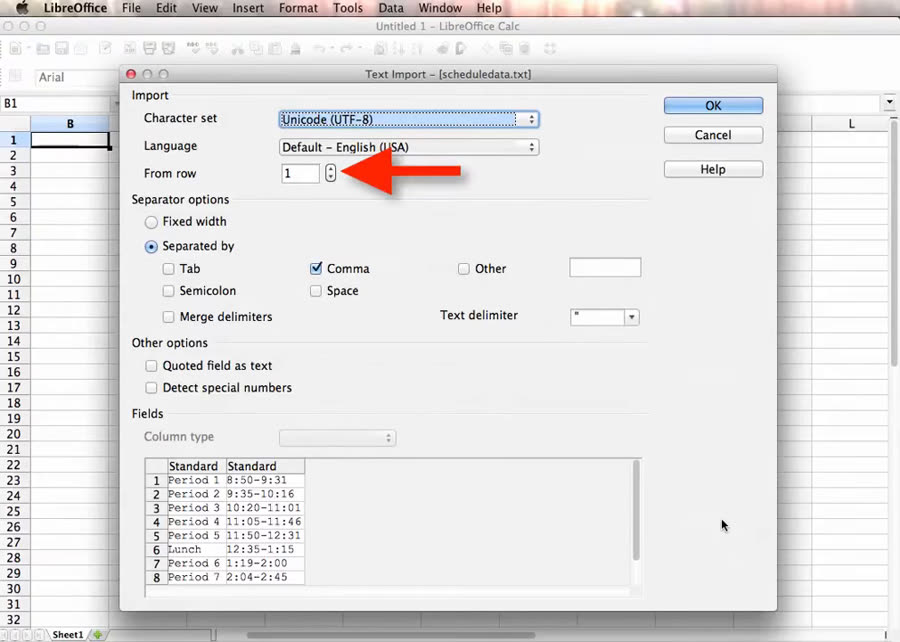
Step 5. Choose the starting row (optional)
From row = 1 imports everything. Enter 3 to start at Period 3.
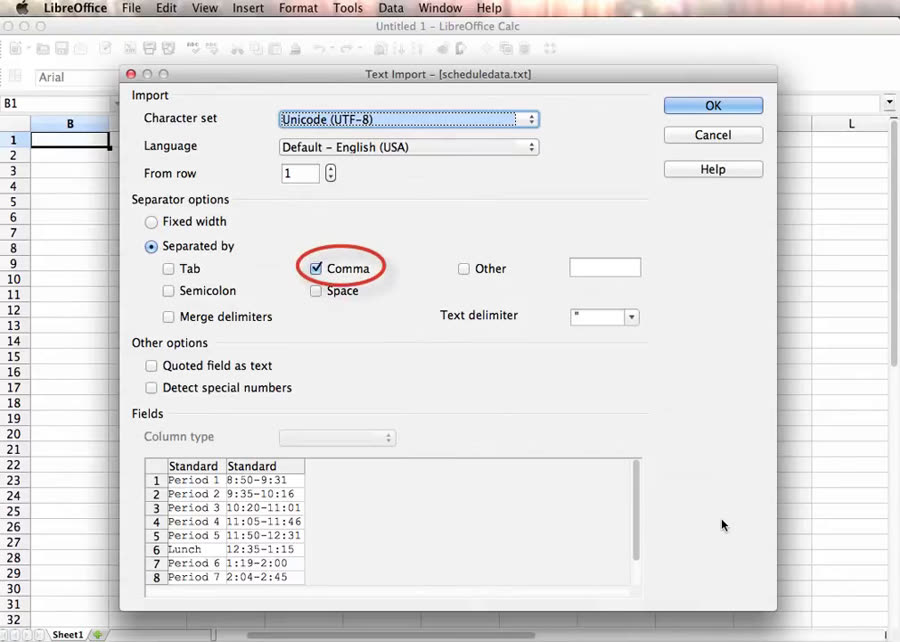
Step 6. Confirm the separator
Under Separator options, make sure Separated by and Comma are ticked.
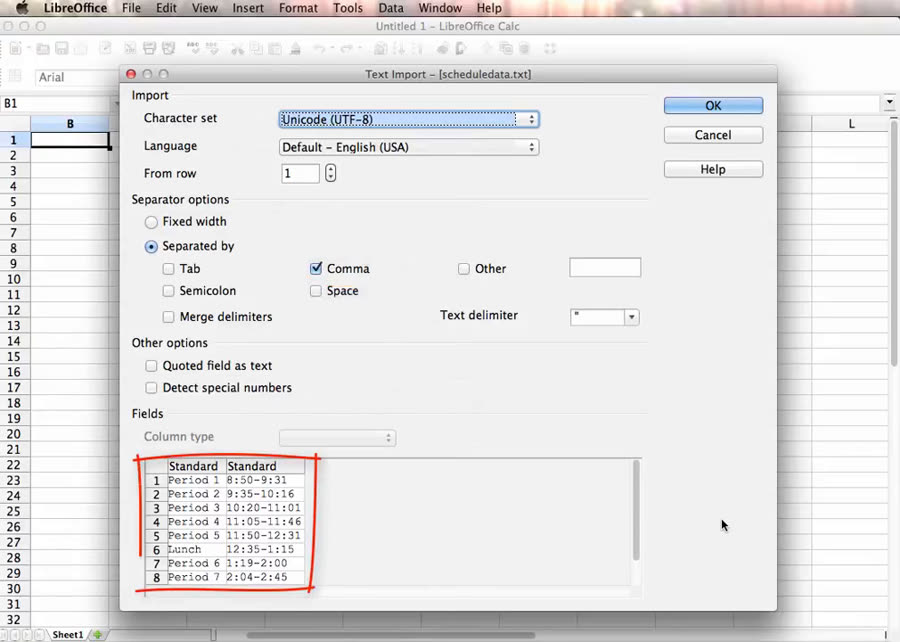
Step 7. Check the preview, then click OK
The Fields preview should show two columns: periods and times.
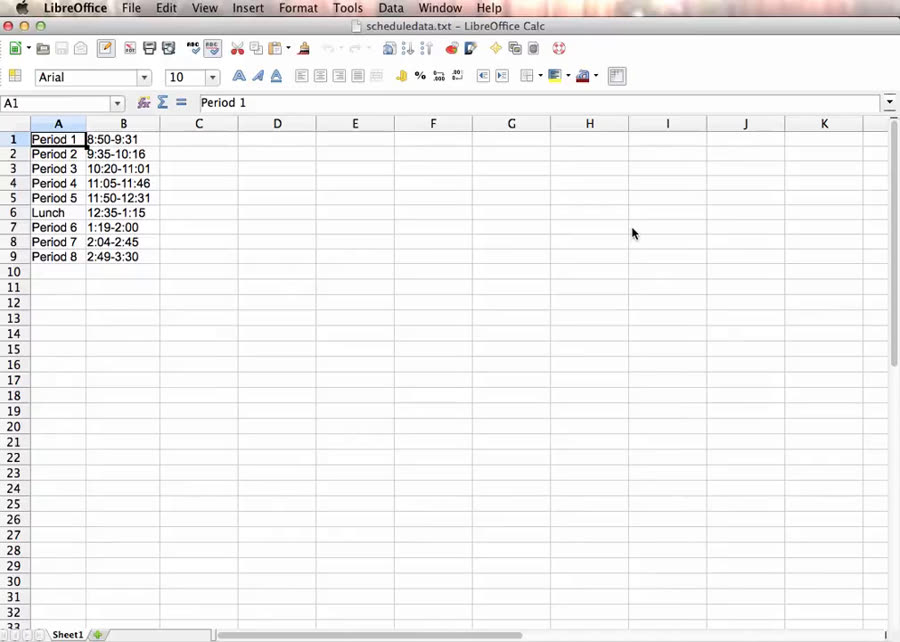
Step 8. Verify the result
Column A holds the period, column B the time. Save as .ods or .xlsx if needed.
Completion check
- ☐ Every row appears in the sheet
- ☐ One field per column, no stray commas
- ☐ Saved as a spreadsheet if needed
Common mistakes
| Symptom | Cause | Fix |
|---|---|---|
| Everything in column A | Wrong separator | Re-import, tick the right delimiter |
| First rows missing | From row > 1 | Re-import with From row = 1 |
| Garbled characters | Wrong character set | Pick the file's encoding (usually UTF-8) |
Attribution: This sample is based on "LibreOffice Calc –- Importing Data" by Rich Lewis, via Wikimedia Commons, licensed under CC BY 3.0. Changes made: still frames were extracted from the video and resized for use as screenshots, and the narration was transcribed and rewritten as a written step-by-step procedure with added checklists and a troubleshooting table. This is a demonstration, not client work; no endorsement by the author is implied.
Send a recording of up to 15 minutes. See pricing →