Done-for-you SOP writing

Record the task once. Get back a finished SOP your team can follow.

Upload a screen recording (Loom, Zoom, MP4) of how you do something. We turn it into a clear, step-by-step standard operating procedure with real screenshots from your video, delivered as a Google Doc or Notion page.

See pricing   View a sample SOP

No software to install. No call required. Recordings you already have work too.

How it works

Three steps. Only the first one is yours.

1

Record and send

Do the task once while recording your screen. Talking while you click helps. Then upload the file or paste a share link.

2

We write it

We transcribe your narration, pull screenshots at the key moments, and write numbered steps with prerequisites, decision points and a completion check. Drafting is AI-assisted; every SOP is reviewed and edited by a person before delivery.

3

Review and use

You get an editable Google Doc or Notion page. One revision round is included if anything needs adjusting.

What every SOP includes

  • Header table: purpose, who performs it, tools, time to complete
  • Before you start: access, files and prerequisites
  • Numbered steps, one action each, with the exact button and field names
  • Screenshots from your recording, captioned, with sensitive data blurred
  • Completion checklist so the person knows they're done
  • Common mistakes and fixes table

Sample SOP preview

Made with our process from a 2-minute public tutorial video. Scroll inside the frame.

Google Doc preview · Sample SOP

SOP: Import a comma-separated file into LibreOffice Calc

PurposeLoad a comma-delimited export into a spreadsheet as clean columns
WhoAnyone who receives .txt/.csv data exports
ToolsLibreOffice Calc (same flow in Excel)
TimeAbout 2 minutes

Before you start

  • The data file is saved locally
  • Fields are separated by one delimiter (comma, tab, or semicolon)

Step 1. Check the source file's structure

Open the file in a text editor and confirm how fields are separated. Each line holds a period and a time, separated by a comma.
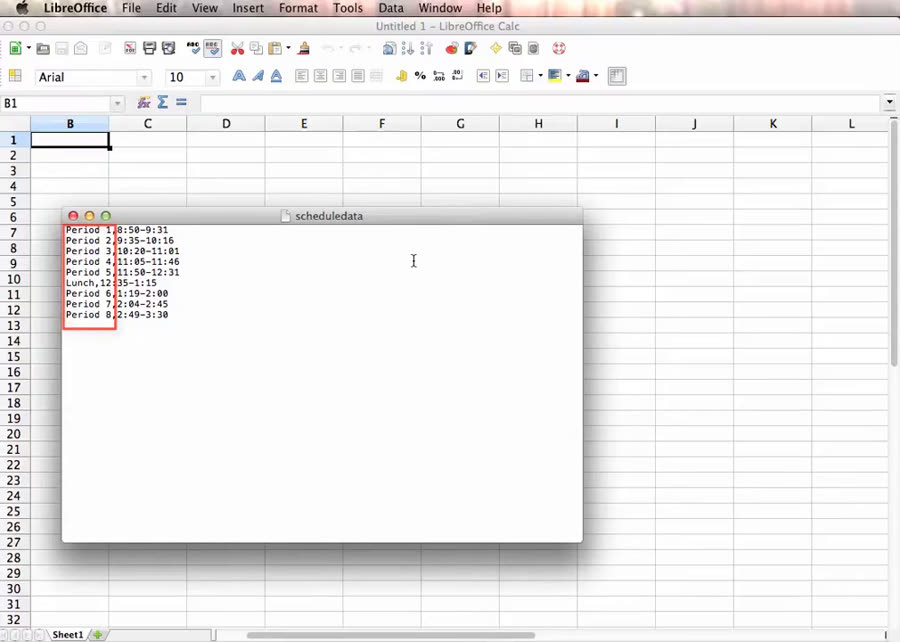
Check the source file's structure

Step 2. Open the file from Calc

In Calc, click File → Open…
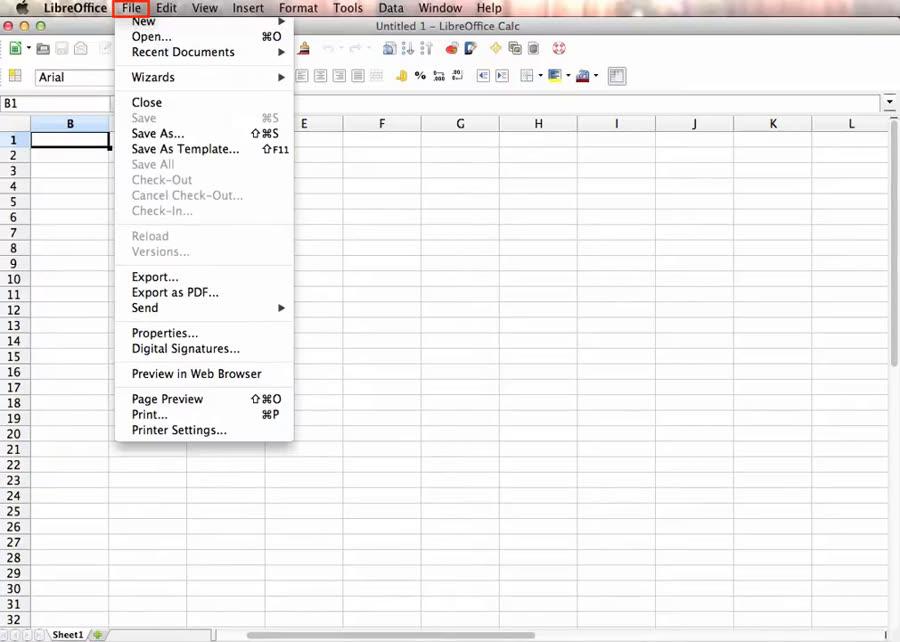
Open the file from Calc

Step 3. Filter to text documents and select the file

Set File type to Text documents, select the data file, click Open. The Text Import wizard opens.
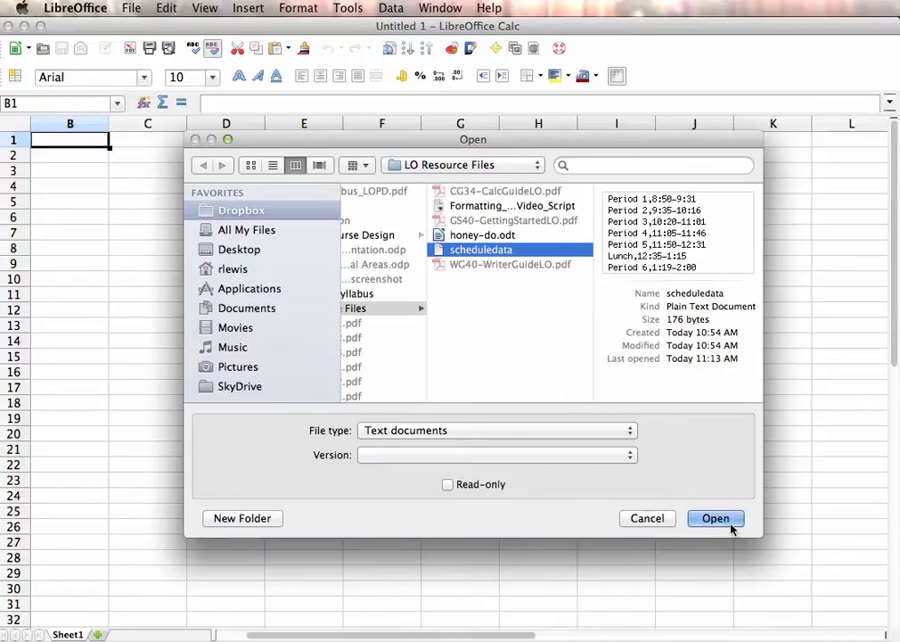
Filter to text documents and select the file

See the full sample SOP →

Attribution: This sample is based on "LibreOffice Calc –- Importing Data" by Rich Lewis, via Wikimedia Commons, licensed under CC BY 3.0. Changes made: still frames were extracted from the video and resized for use as screenshots, and the narration was transcribed and rewritten as a written step-by-step procedure with added checklists and a troubleshooting table. This is a demonstration, not client work; no endorsement by the author is implied.

Simple, fixed pricing

Pay up front, then submit your recording link. Each recording can be up to 15 minutes and cover one workflow. Add-ons can be selected at checkout.

Single SOP

$149

  • 1 recording, up to 15 min
  • Delivered in 3 business days
  • 1 revision round
  • Google Doc or Notion
Buy single SOP

Library 10-Pack

$1,190 $119 per SOP

  • 10 recordings, up to 15 min each
  • First 3 in 5 business days, then up to 3 per week
  • 1 revision round per SOP
  • Index page linking all 10
  • Credits valid 6 months
Buy 10-pack

Optional add-ons at checkout: next-business-day rush (single SOP) +$79 · each extra 15 min of recording +$59 · extra revision round +$39. Secure checkout by Stripe.

FAQ

What kind of recording works best?

A screen recording of you doing the real task from start to finish, talking through what you're doing and why. Loom, Zoom, QuickTime, OBS, Windows Snipping Tool and phone screen recordings all work. Silent recordings are fine if you add a few notes in the form.

Can I send recordings I already have?

Yes. Old Loom videos, Zoom recordings and training clips work, as long as each one shows one workflow and is 15 minutes or less (or you buy the length add-on).

How do I send the recording?

After checkout you're taken to a short intake form where you paste a share link to the recording that can be viewed without signing in (Loom, Google Drive, Dropbox, OneDrive, unlisted YouTube or Vimeo). If you have trouble, email the link to clearworkhq+sop@mail.grokbot.com.

Do you use AI?

Yes, as a tool. Transcription and first drafts are AI-assisted, and a person reviews and edits every SOP, checking each step against your recording, before it's delivered.

Google Doc or Notion: how does delivery work?

For Google Docs, we share an editable document with your email, and can transfer ownership on request. For Notion, we send a page you can duplicate into your own workspace.

What's included in a revision?

Fixes to wording, order, missing or incorrect steps, screenshot swaps and formatting, requested within 14 days of delivery. A different process or a changed workflow counts as a new SOP.

What about sensitive information?

Please don't record passwords, full card or bank numbers, or medical records. If we notice sensitive data in a screenshot, we blur it. Our working copies of recordings and extracted frames are deleted 30 days after delivery, or sooner on request.

What won't you document?

Legal, medical or safety-critical procedures, anything that needs us to log into your systems, and recordings with more than one unrelated workflow.

What if my recording can't be used?

We'll tell you what's missing and you can re-record at no charge. If it still can't produce a usable SOP, you get a full refund.

Get the process out of your head

One recording in, one usable SOP out.

Choose a package